
How to play Verse vs Verse
A beat plays, your bars scroll past, and every bar ends on a word you have to land on. Then the whole lobby listens back and decides who did it best. Here's everything, from your first lobby to your first win.
BACK TO THE GAMEContents
- Making a lobby and inviting friends
- Your character and colours
- Visualizers
- Your mic, the music and vocal effects
- How a battle goes
- Game modes
- Readying up
- Beginning a battle
- Rapping
- Playback, 🔥 and voting
- Who wins, and what's next
- Leaving a battle early
- Saving and downloading battles
- The player list
- Friends
- The battle queue
- Favorites and the song queue
- Voice chat
- The settings menu and shortcuts
- Streaming on Twitch
- Adding your own songs
- Accounts
- The full game
- The latency test
- Tooltips
1. Making a lobby and inviting friends
Everything happens in a lobby, a room for up to 8 players. On the first screen, press Create to make one. You'll get a four-character lobby code, shown where the Create button was.
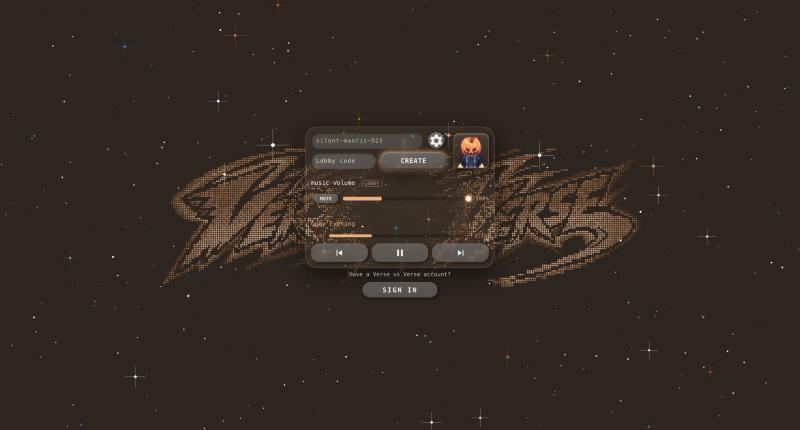
- Share a link: click (or tap) the lobby code. That copies a link like versevsverse.app/join/AB12. Paste it in your group chat. Anyone who opens it lands straight in your lobby, in the browser or in the app.
- Share just the code: tell your friends the four characters. They type it into the Join box on the first screen and press Join.
- Joining late is fine. You can join a lobby in the middle of a battle. You'll watch the rest of it, then you can ready up for the next one.
- Leave is the same button once you're in.
Guest codes (full game)
Got the full game and a friend who doesn't? Press and hold the lobby code (or right-click it on a computer) to get a six-character guest code. Copy the link and send it, or tell them the code to type in the Join box.
- One friend per code. Each code works once, and only for this lobby. Hold again for another.
- Your guest gets this lobby's full game: every song, every game mode and setting, the song queue, vocal effects, and a name of their choosing. Their name and effects only last for this lobby and aren't saved. A GUEST tag shows next to their name.
- It doesn't give them uploading songs, saving or downloading battles, favorites, visualizers or friends.
- It lasts while you're in the lobby. A dropped connection doesn't end it, but once you leave for good, your codes stop working and your guests are back on the free game.
2. Your character and colours
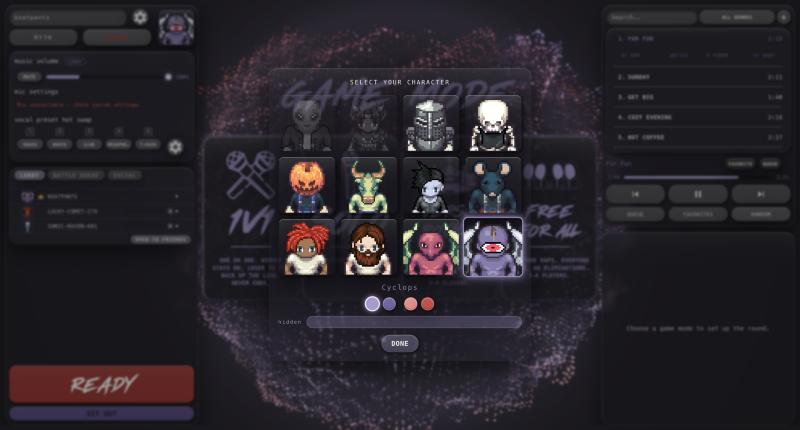
The game picks a random character for you the first time you play, and the whole game is coloured to match. Click your character's portrait, next to your name, to open the character picker.
- Pick anyone from the grid. Each character appears only once per lobby, so a character someone else is using is greyed out.
- Under the grid are four colour swatches, two colour schemes in a light and a dark shade. The one you pick colours your whole game, your bars in battle, and how other players see you.
- The game remembers your colour for each character.
- There are secret characters too. Know a name? Type it in the box under the grid.
3. Visualizers
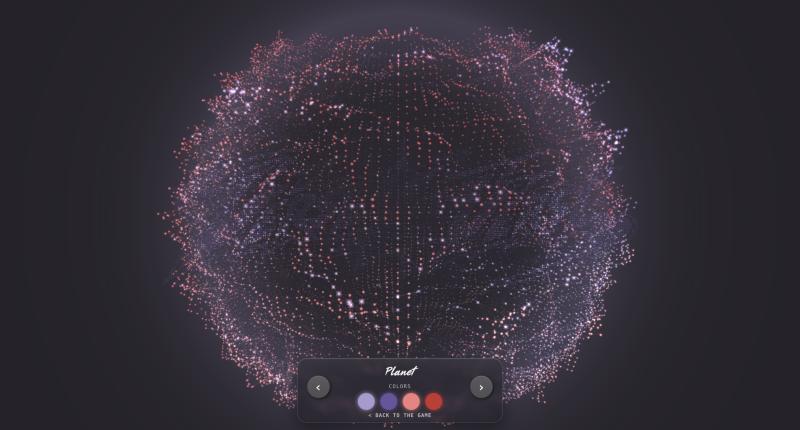
Behind the game, the music drives a visualizer. Open the library with Settings → Visualizer, or press V. Flip through them with the ‹ › buttons or the ← → keys, and close it with V, Esc or back to the game. The game keeps running underneath.
- From anywhere in the game, Z and X step back and forward through the visualizers without opening the library.
- Every visualizer draws in your character's four colours. The swatches under its name switch each colour off or on. Switch them all off for black and white.
- The library: Starry Night, Echo Ring, Still Water, Equalizer, Hyperspace, Wireframe, Planet, Spectrogram, Shards and Vortex. The free game keeps Starry Night and Echo Ring; the rest are in the full game.
4. Your mic, the music and vocal effects
Set this up before your first battle. It only takes a minute, and it makes the playback sound a lot better.
Music volume
The music slider has two levels, and it shows which one you're setting:
- LOBBY is the song playing between battles.
- BATTLE is the music while you rap, during playback, while you watch a replay, and any time you're soloed (below).
They're completely separate, so you can keep the lobby quiet and the battle loud.
Your mic and SOLO
The mic slider sets how loud you're recorded. What you set here is exactly what goes into the battle. Nothing evens it out afterwards.
Press SOLO to hear yourself the way the battle will sound: your voice, with your effects, over the music at battle level. While you're soloed, nobody can hear you and you can't hear them.
- Press SOLO.
- Turn the music up. Max is best: it's the level you'll rap against, and you want to hear your voice cut through it.
- Rap a few lines and move the mic slider until your voice sits clearly on top of the beat. That's your recording level.
- Press SOLO again to go back to the lobby.
MUTE silences your mic to everyone. If you're muted when a battle starts, the game unmutes you, so you don't rap a whole verse into silence. Use headphones on a computer, or the beat will leak into your mic.
Vocal effects and hot swaps
The gear on the VOCAL PRESET HOT SWAP header opens the Vocal Sound-Good-izer: autotune (tuned to the song's key), a 7-band EQ, a de-esser, a compressor, fuzz, delay and reverb. Your effects are recorded right into your verse, so SOLO lets you hear exactly what you'll get.
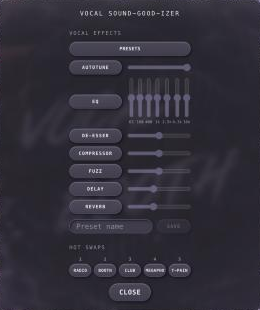
- Pick a preset from the menu, or build your own sound and save it as a preset.
- Under the effects, bind presets to the five hot swap slots.
- Mid-battle, press a slot (or 1–5 on a keyboard) to switch sounds on the fly: autotune for the hook, a robot voice for one bar, whatever's funny. Press the lit slot again to turn all effects off.
That's why to set it up before a battle: once the beat starts, there's only time to hit a slot.
5. How a battle goes
Every battle runs the same way:
- Pick a game mode.
- Pick a song.
- Choose the game settings.
- Ready up.
- Begin.
- Battle.
- Play it back together and 🔥 the best bars.
- Vote.
- A winner is declared.
- Save it or download it, then go again.
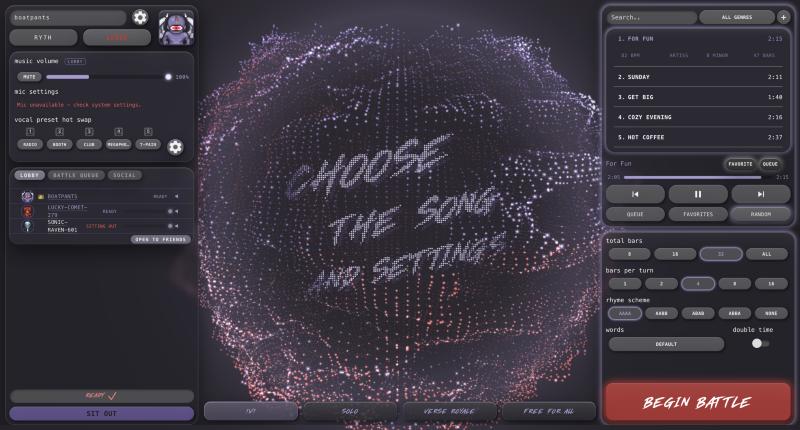
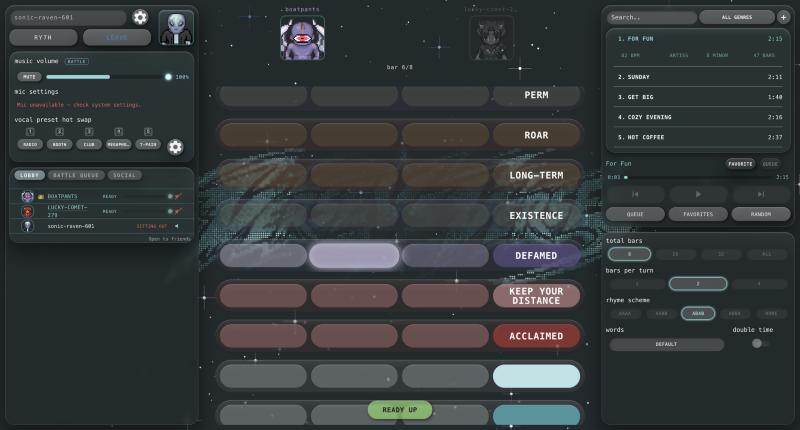
The controller runs the game: they pick the mode, song and settings and press the big buttons. That's whoever won the last battle (the host, before anyone has won). The 👑 in the player list shows who it is, and their settings panel glows.
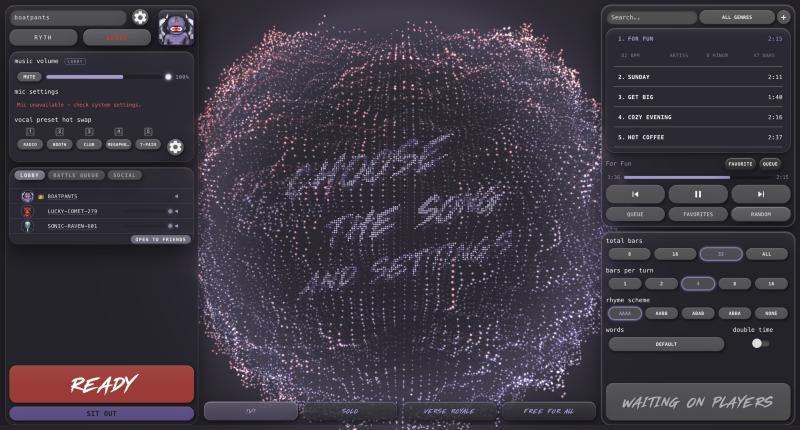
On a computer
- Game mode: four big cards in the middle of the screen. Once one is picked, they shrink into a row at the bottom, so the mode can still be changed before you begin.
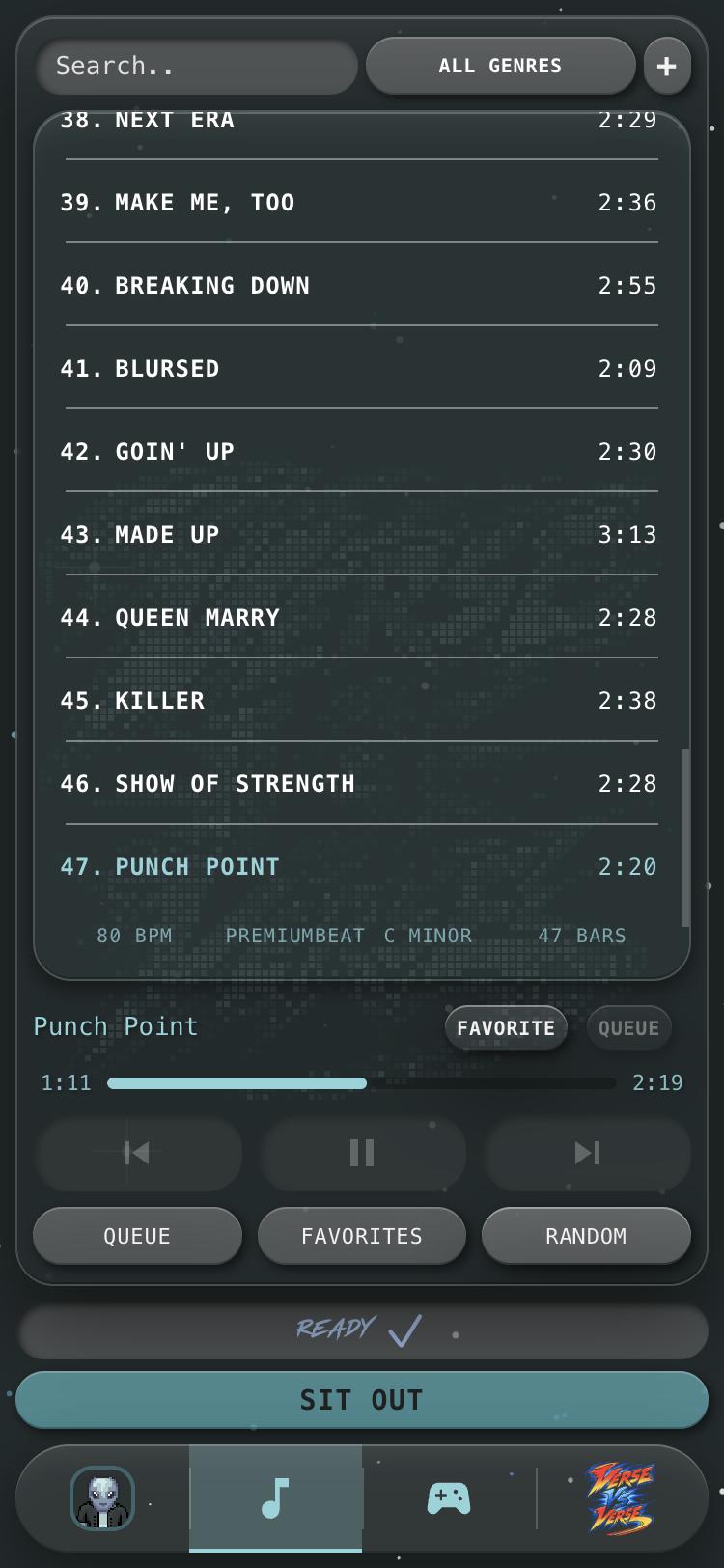
- Song: the song list is at the top of the right-hand panel. Hover a song for its details, click it to pick it. Use the genre menu, the search box, ⏮ ▶ ⏭ and RANDOM to find one.
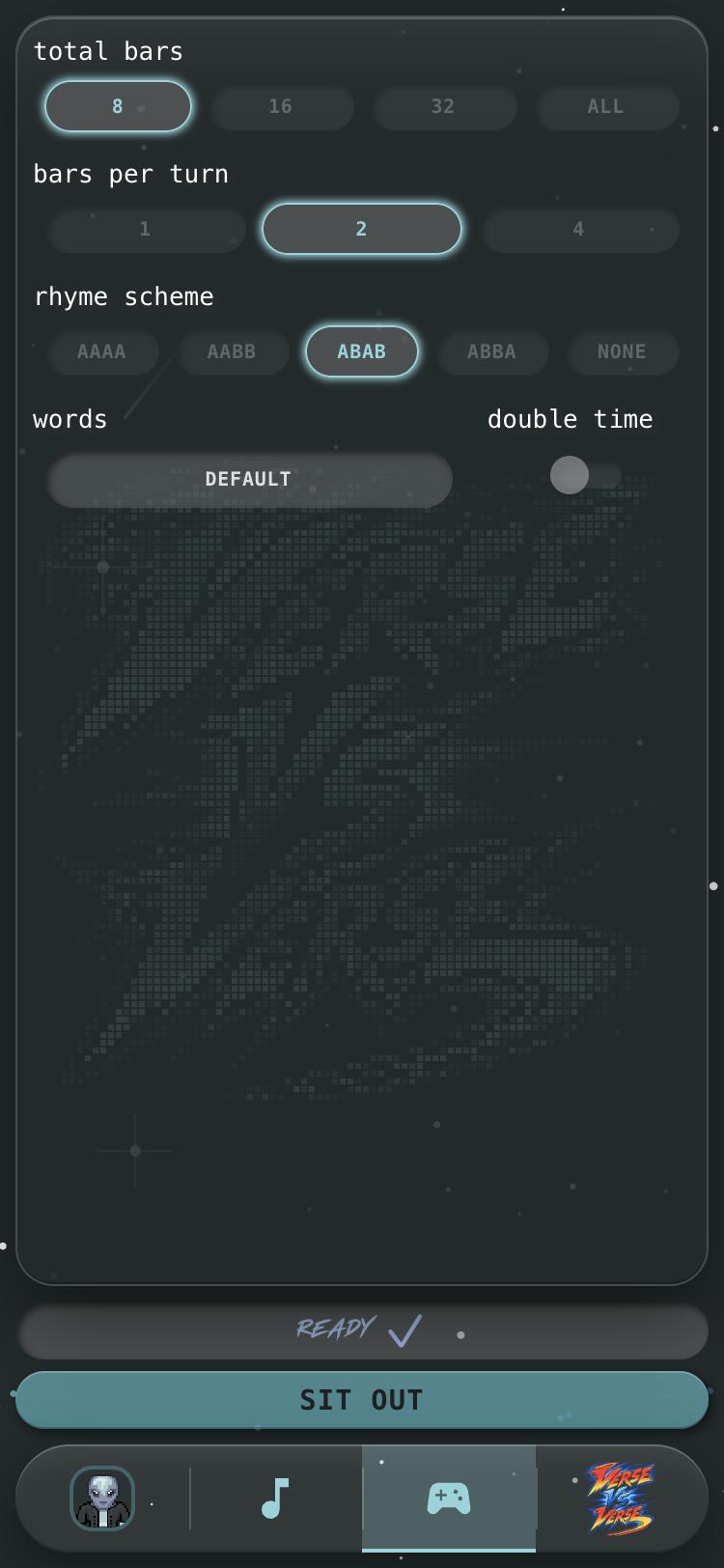
- Game settings: under the song list. TOTAL BARS, BARS PER TURN, the RHYME SCHEME, the WORDS list and DOUBLE TIME.
- Ready / Sit Out: at the bottom of the left-hand panel.
- Begin: the big button at the bottom of the right-hand panel (controller only).
- Battle: the side panels slide away. The bars fill the middle, the rappers stand either side, and your music, mic and hot swaps sit along the bottom.
- Playback and voting: in the middle. The controller presses play.
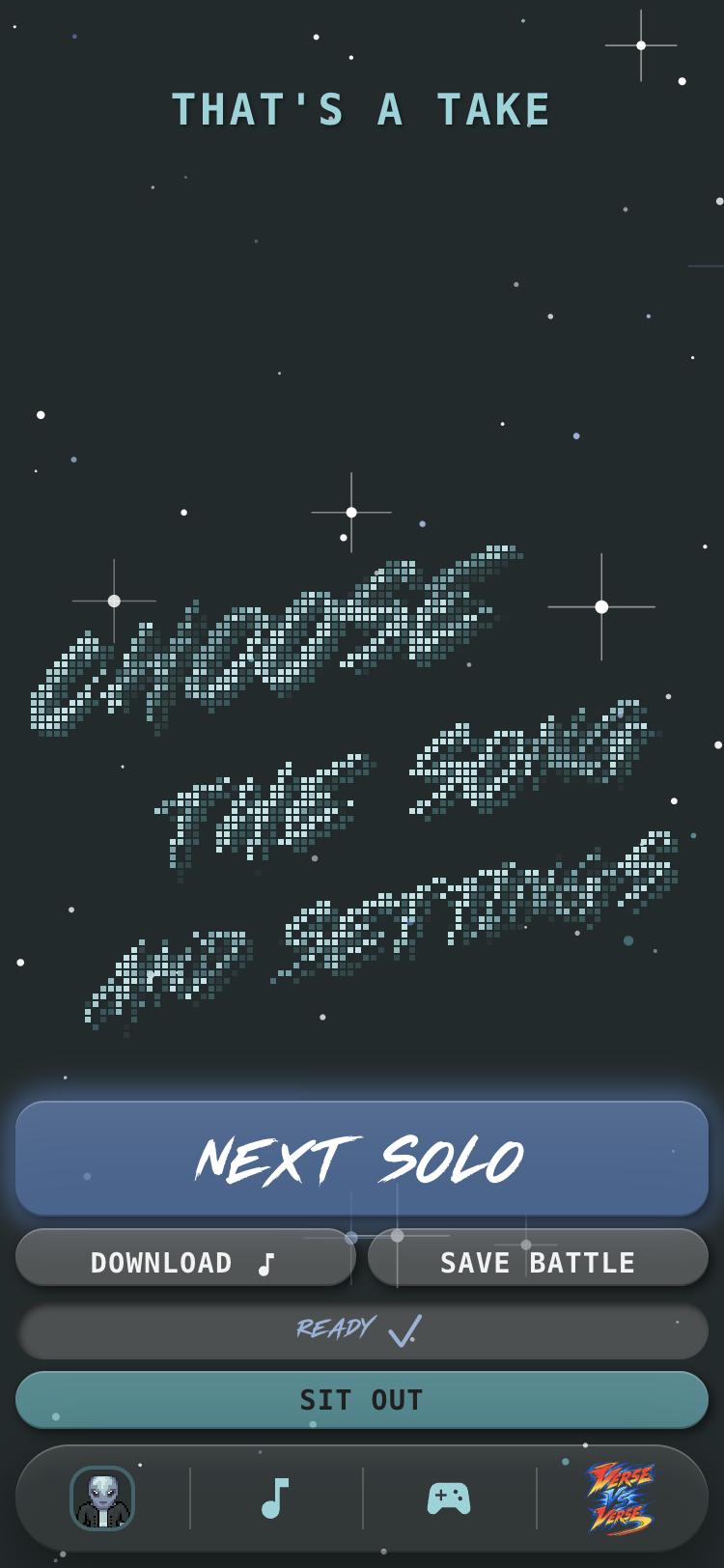
- Results: in the middle. The panels come back, with Next / Rematch at the bottom of the right-hand panel and Download / Save Battle under it.
On a phone
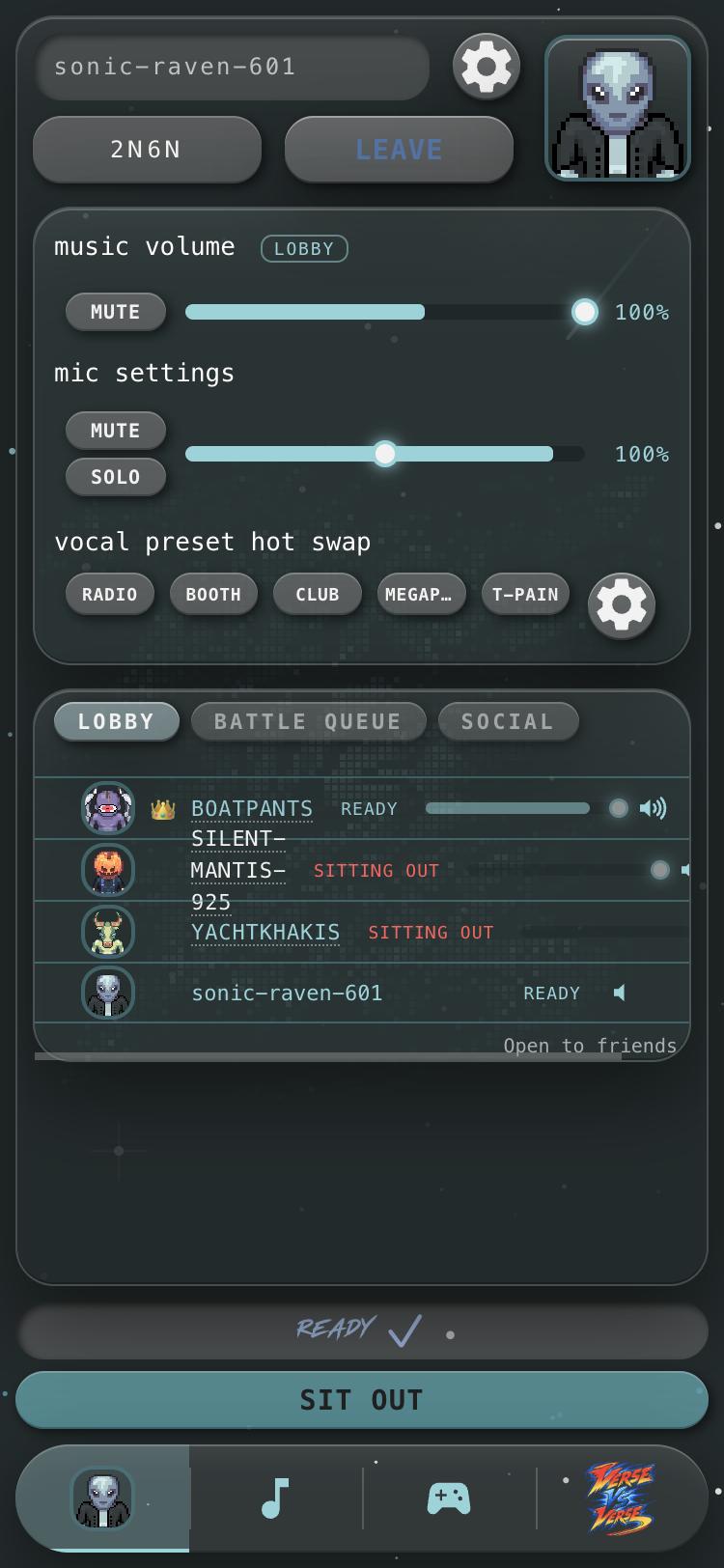
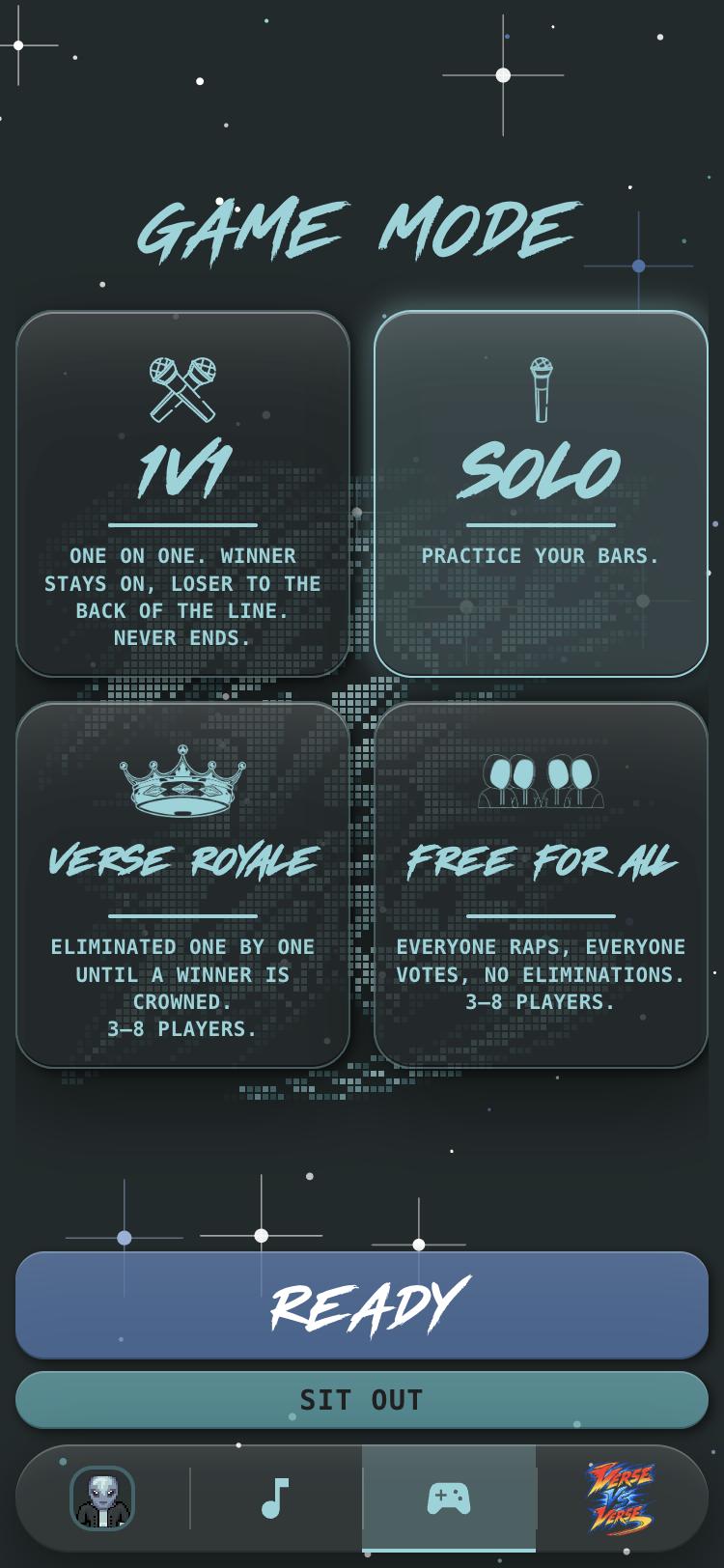
- Four tabs along the bottom: your character (the player list, your audio and your name), ♪ MUSIC (the song list), GAME (game mode and settings) and the logo (settings). Tap a tab to open it, tap it again to close it, or swipe left and right between them.
- Game mode: if you're the controller and no mode is picked, the four mode cards open first. GAME shows them until one is chosen.
- Song: after picking a mode you're taken to MUSIC. Tap a song to pick it.
- Ready / Sit Out: above the tabs.
- Game settings and Begin: readying up takes the controller to GAME, with Begin at the bottom.
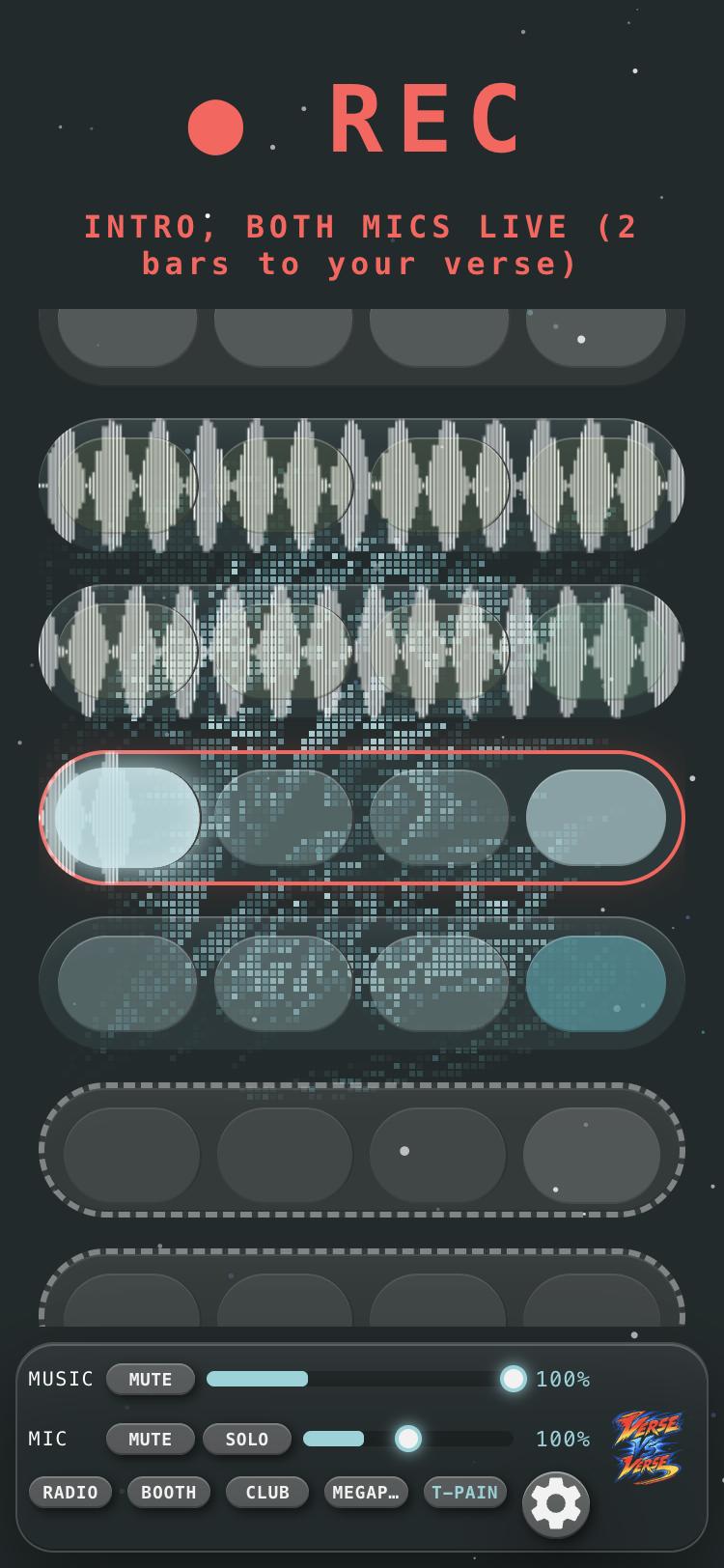
- Battle: the bars fill the screen, with small music, mic and hot swap controls under them. The logo button there opens settings.
- Playback, voting and results fill the screen, with the controller's button and Download / Save under the results. The tabs still open over the top.
6. Game modes
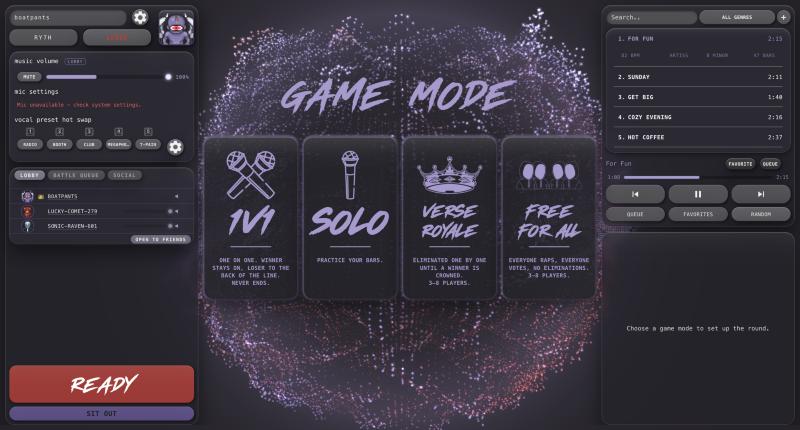
1v1
Two rappers trade turns over one beat. The winner stays on and takes on the next player in line, and the loser goes to the back of the line. Nobody is ever out, and it never has to end. Needs 2 or more players ready.
Solo
Just you and the beat, the whole song. No vote. Perfect for practice, or for showing the room what you've got. Exactly one player readies up.
Verse Royale
Everyone who's ready raps every round, taking turns in order. After each round, the lowest score is knocked out. Rounds continue until one rapper is left: the champion. Needs 3 to 8 players ready.
Free For All
Everyone who's ready raps every round, and nobody is knocked out. Each round has a winner, and a running leaderboard keeps the totals. Players can join in between rounds. Needs 3 to 8 players ready.
7. Readying up
- Ready means "put me in the battle". Press it again to un-ready.
- Sit Out means "I'm watching": you can still hear, talk, 🔥 and vote, but you won't be picked to rap.
- You can switch between them at any time, and your status shows next to your name in the player list (READY or SITTING OUT).
- Everyone has to be either ready or sitting out before a battle can begin. Until then, the Begin button says what it's waiting for, like "Not enough players ready".
- Rappers are picked in the order they readied up. Un-ready and ready again, and you go to the back.
8. Beginning a battle
- The BATTLE QUEUE tab in the player list shows who's up first, and fills out as people ready up (more below).
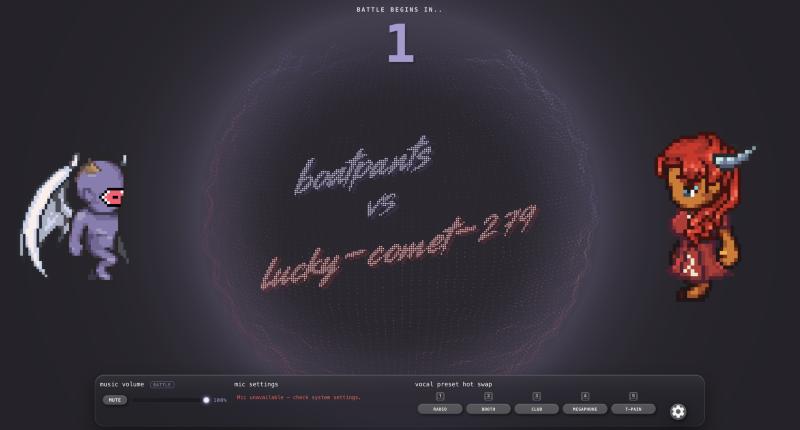
- When the controller presses Begin, the rappers' names appear over the visualizer and BATTLE BEGINS IN… counts down from 5.
- Then a 2-bar count-in: clicks on every beat, so you can feel the tempo before the music starts.
- Every battle opens with a 4-bar intro where every rapper's mic is live at once. Hype it up, talk your trash, all over each other. Then the turns begin.
- From the count-in until the beat ends, rappers can't hear voice chat and voice chat can't hear them.
9. Rapping
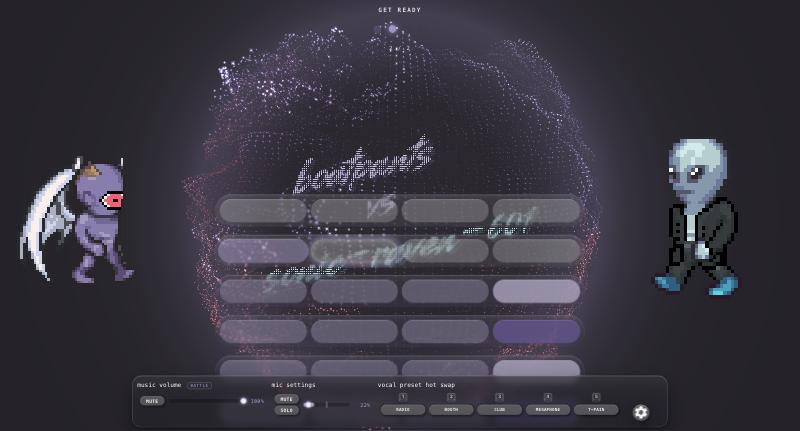
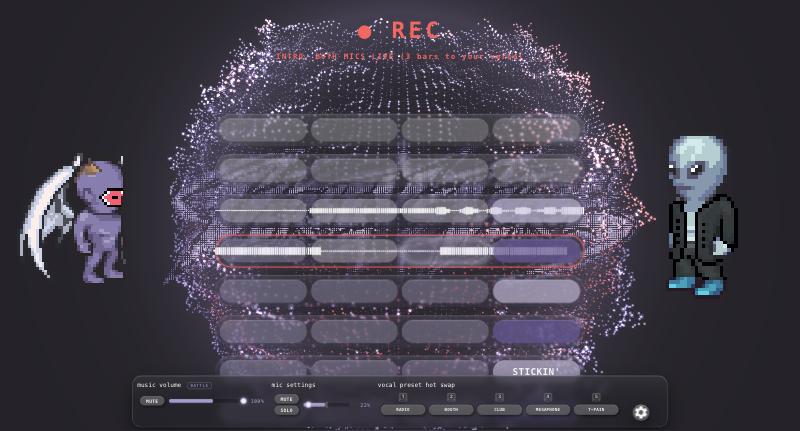
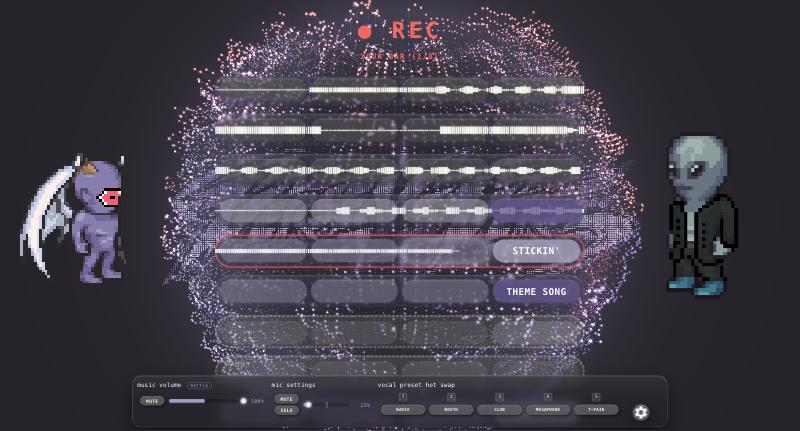
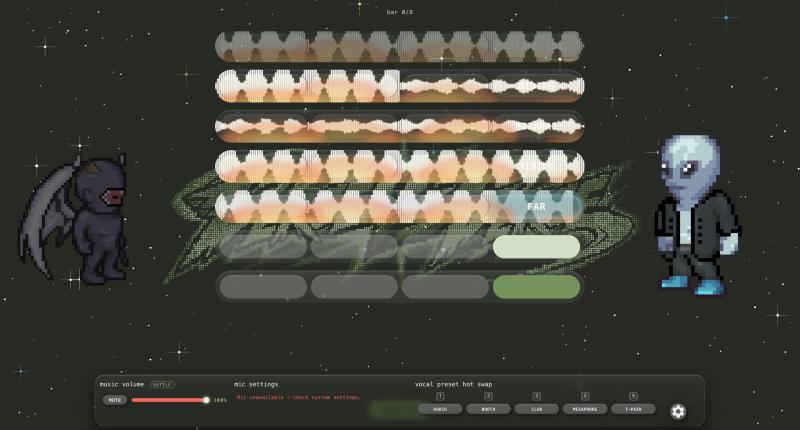
The beat plays and the bars scroll up the screen. Each bar is a row of four cells, one per beat. The cell that lights up is where you are in the bar, and the bar in the middle is the one playing now.
- Your bars are in your colour and show a prompt word in the last cell. Your job is to end the bar on that word, right as that last beat hits.
- Other rappers' bars are grey. Your character is lit and moving on your turn, and the banner over the bars says when it's you. As you rap, your voice draws a waveform across your bars.
- Look ahead. The next few bars are always visible, so you can see your next word coming and steer your lines toward it.
- The words rhyme in the rhyme scheme the controller picked. With AABB, two bars rhyme, then the next two; with ABAB they alternate; AAAA all rhyme. So landing one word sets you up for the next.
- Not sure how to get there? Say something about the word, set it up with a question, or just commit and land it. A fumbled bar is often the funniest bar of the night.
- Your whole battle records on your own device and gets stitched together with everyone else's afterwards, so you won't hear the other rappers while you rap. That's normal.
Need a warm-up? Browse the rhyme lists: they're the words the game prompts you with.
10. Playback, 🔥 and voting
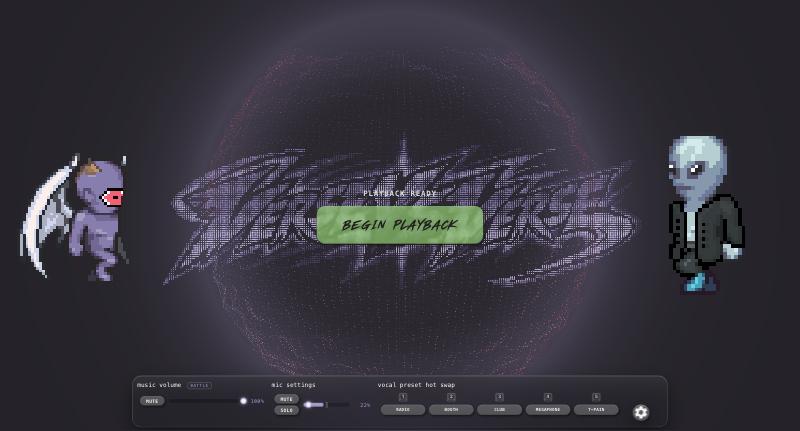
- When the beat ends, the game mixes everyone's bars into one track. Once everyone's ready, the controller presses play, and the whole lobby hears it at the same moment.
- The bars scroll again with the words showing, in the rapper's colour.
- 🔥 a bar by clicking (or tapping) it. You can 🔥 the bar playing now and the last few before it, once per bar, never your own. Bars catch fire as they get more 🔥, and turn blue when they get really hot.
- When the playback ends, the vote opens for 10 seconds (20 when someone in the lobby is streaming). Tap the rapper who won. You can change your vote until it closes.
- In 1v1, everyone who wasn't rapping votes. In Verse Royale and Free For All everyone votes, but never for themselves, and the last two rappers in a royale don't vote.
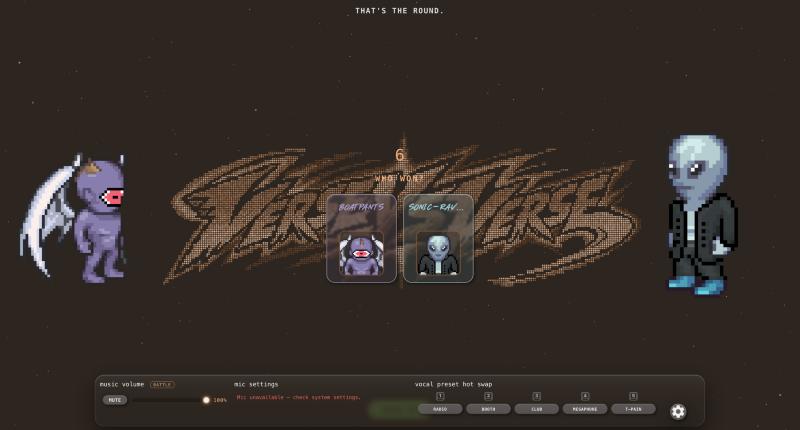
Scoring
| What | Points |
|---|---|
| Each vote | 5 |
| Each 🔥 on one of your bars | 1 |
| The single most-🔥'd bar of the battle (best bar) | 5 |
11. Who wins, and what's next
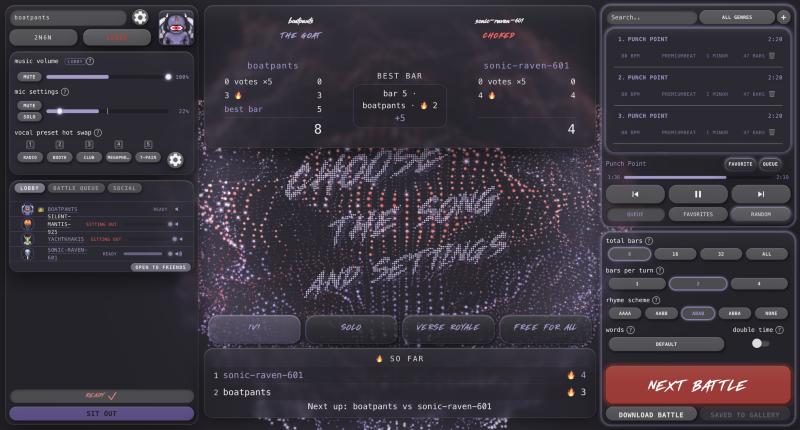
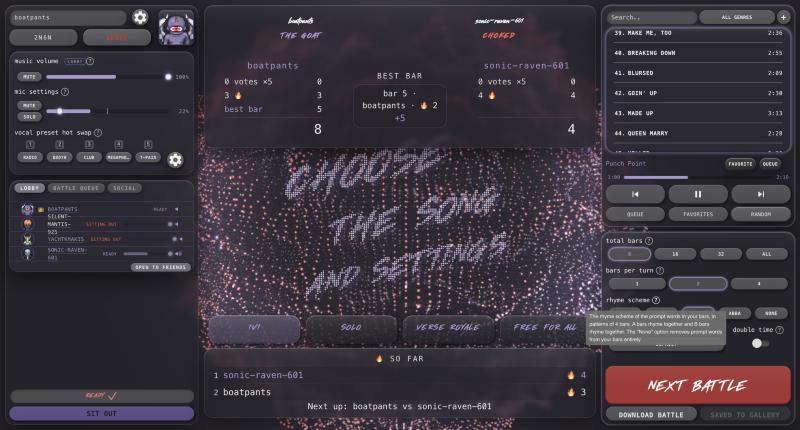
The results screen shows the GOAT (the winner) and who CHOKED, each rapper's score, the best bar, and the 🔥 totals so far. The winner becomes the controller and picks the next song and settings.
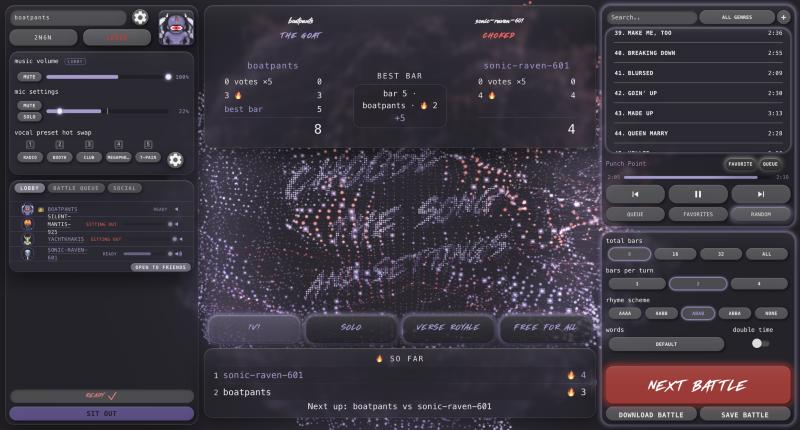
- 1v1: the winner stays on and faces the next player in the battle queue, and the loser goes to the back. A tie sends both to the back and brings up the next two. With only two players, it's a rematch every time.
- Solo: your results, then Next Solo to go again.
- Verse Royale: the lowest score is out. If everyone ties for the lowest, the round is run again. When one rapper is left, they're crowned champion, and the game is over.
- Free For All: the round's top score wins the round, and the leaderboard adds up everyone's totals. Nobody's out, so keep going as long as you like.
From any results screen the controller can press Next to go again, or pick a new game mode. Main Menu in the settings menu takes the whole lobby back to the game mode screen.
12. Leaving a battle early
- 1v1: Exit Battle in the settings menu forfeits your bars. Your opponent then chooses: Run It Back (back to the lobby), Take the Win, or Takeover (rap the rest of the song alone, with every 🔥 counting double).
- Verse Royale / Free For All: any rapper can press Stop Battle. If more than half of the rappers agree within 10 seconds, everyone goes back to the lobby.
- Solo: Exit Battle, or Restart Battle for a fresh start with new words.
13. Saving and downloading battles
Under the results are two buttons:
- Save Battle keeps the battle in your Battle Replay Gallery (Settings → Battle Replay Gallery), on this device. A replay plays the battle back with the bars, just like the original. In a replay, press Space to pause, hold ← / → to scrub through it, and click bars to loop just those bars.
- Download Battle saves the finished battle as an audio file (WAV) to send to your friends. On a phone it opens the share sheet.
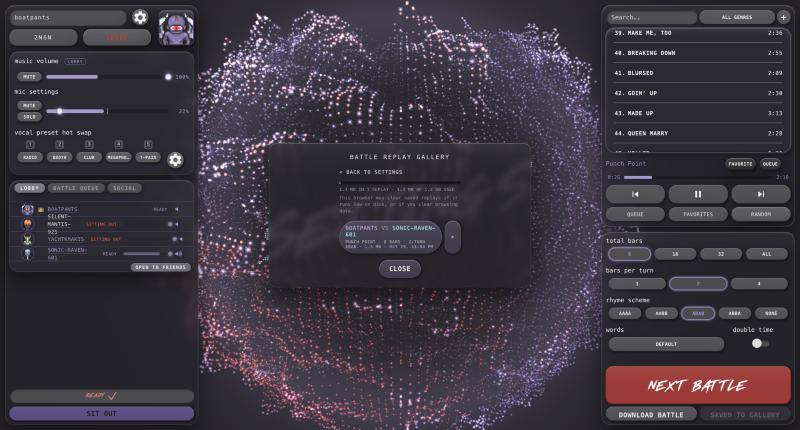
Both are part of the full game.
14. The player list
The left-hand panel (on a phone, your character tab) lists everyone in the lobby.
- 👑 marks the controller. Next to each name is their status: READY, SITTING OUT, OUT (knocked out of a royale) or RECONNECTING.
- The speaker icon shows who's talking. Each player has their own volume slider, so you can turn one friend down without turning everyone down.
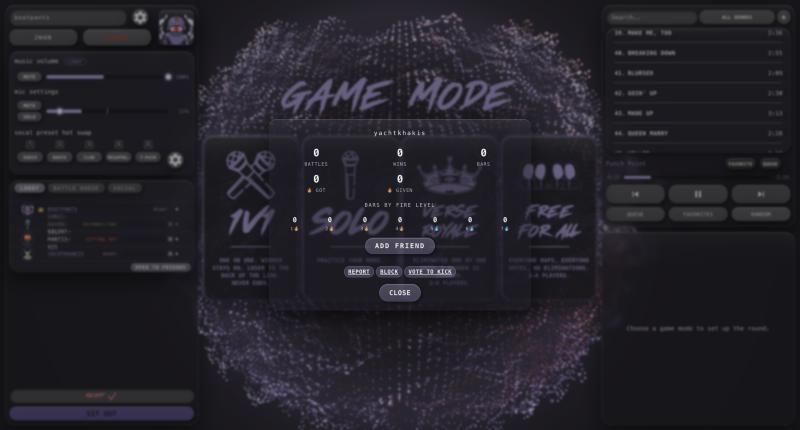
- Click a player's name to open their profile:
- signed-in players show their career stats: battles, wins and 🔥;
- Add Friend sends a friend request, and a request they've sent you can be accepted or declined right there;
- Block means you won't hear each other, and they can't send you friend or join requests. Unblock in Settings → Account → Blocked Players;
- Report sends a report to us with a reason. They're never told who reported them;
- Vote to Kick asks the lobby, anonymously. More than half of the lobby has to vote yes. A kicked player can only come back if the host lets them in.
- The host can make the lobby open (friends of players can ask to join) or closed. Join requests appear at the bottom of the list, for the host to let in or not.
15. Friends
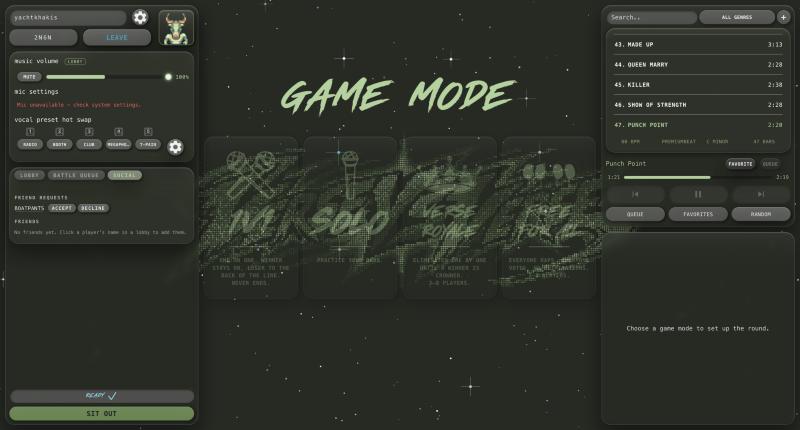
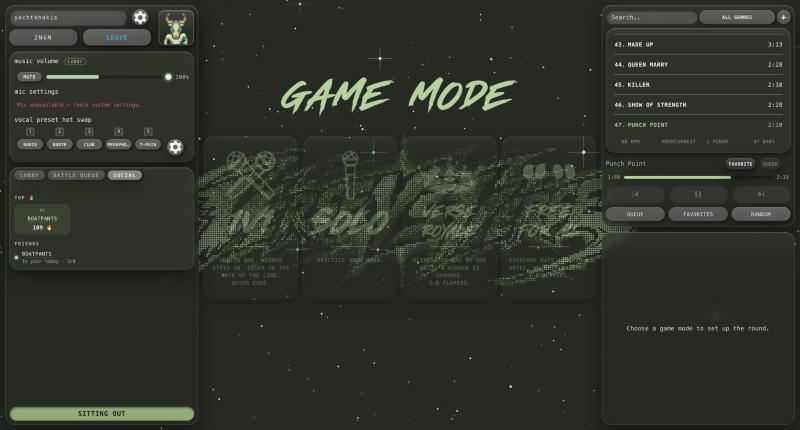
With an account and the full game, the SOCIAL tab above the player list holds your friends.
- Your top 3 friends by 🔥 received.
- Friend requests waiting for you, to accept or decline.
- Everyone on your list, online first, with where they are: offline, online, or in a lobby (and how full it is).
- Request to Join on a friend in an open lobby with room. Their host lets you in.
Make friends from anyone's profile in a lobby (Add Friend).
16. The battle queue
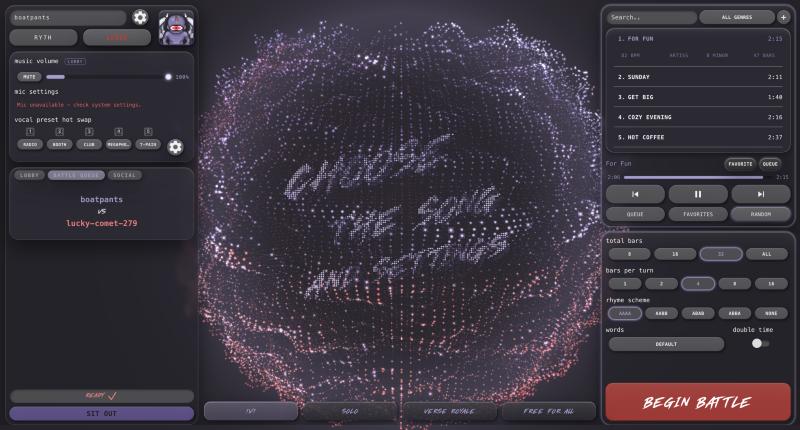
The BATTLE QUEUE tab, next to LOBBY in the player list, shows who's battling next, in each player's colour. The order is the order people readied up in.
- 1v1: who's up (the winner staying on, or the first in line) VS the next player, then everyone else waiting. Losers go to the bottom.
- Verse Royale: everyone still in, in turn order, with the knocked-out players below.
- Free For All: the turn order for this round (or the next one, on the results screen).
- Solo: there's no queue.
17. Favorites and the song queue
- FAVORITE saves the current song to your favorites. The FAVORITES button shows only those. Favorites are yours alone.
- QUEUE (controller) adds the current song to the lobby's song queue: the songs for the next battles, in order. The first song queued becomes the current song, and after each battle the queue moves on to the next.
- The QUEUE list shows what's coming up. Drag songs to reorder them, or remove them with the trash can. The same song can be queued more than once.
Both are part of the full game.
18. Voice chat
- Everyone in a lobby can hear each other, all the time, except rappers mid-battle (from the count-in until their beat ends).
- MUTE on your mic silences you to everyone. SOLO mutes you both ways while you set up your sound.
- On a phone, the game uses echo cancellation, so you can play without headphones. On a computer, wear headphones.
- If audio ever stops on a phone, the game shows TAP TO TURN AUDIO BACK ON. Tap it.
19. The settings menu and shortcuts
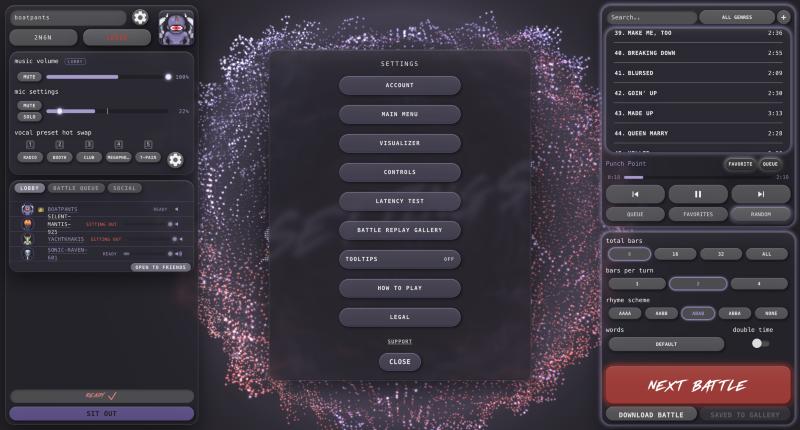
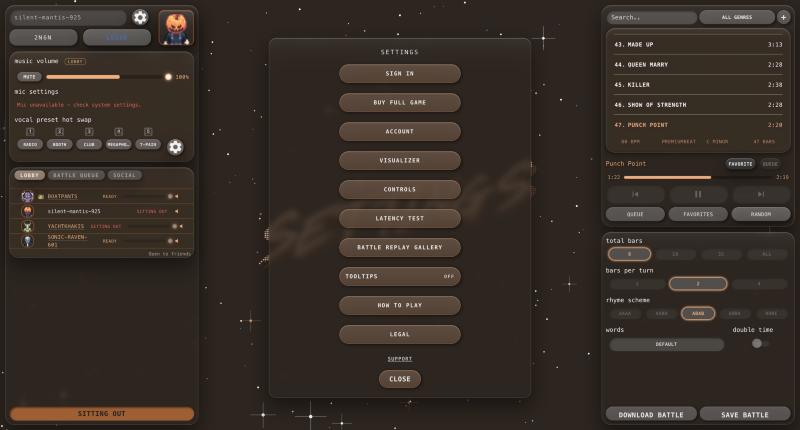
Open settings with the gear next to your name, the logo tab on a phone, or Esc from anywhere. It's also the pause menu during a battle. Inside: Buy Full Game, Account, Main Menu, Visualizer, Controls, Latency Test, Battle Replay Gallery, Tooltips, How to Play (this page) and Legal.
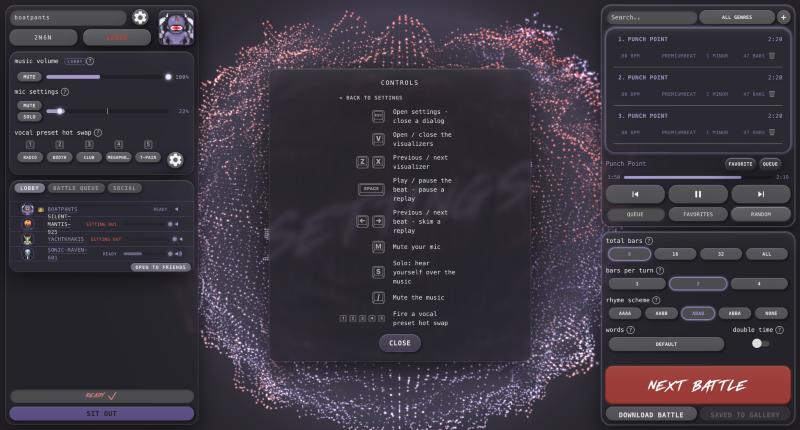
| Key | Does |
|---|---|
| Esc | Open or close settings |
| M | Mute or unmute your mic |
| S | Solo on or off |
| / | Mute or unmute the music |
| 1–5 | Fire a vocal effect hot swap |
| V | Open or close the visualizer library |
| Z / X | Previous / next visualizer |
| Space | Play or pause the lobby song, or a replay |
| ← / → | Previous / next song, or skim through a replay |
20. Streaming on Twitch
Streamers can connect Twitch in Settings → Account → Connect Twitch. Your chat can then vote (!1, !2 or !name) and 🔥 bars (🔥 or !fire) during playback, redeem Channel Points to drop a word into the battle, and join with a chat lobby code to watch and vote from their own screen. The Twitch page in settings lists every command, with a line to paste into chat.
21. Adding your own songs
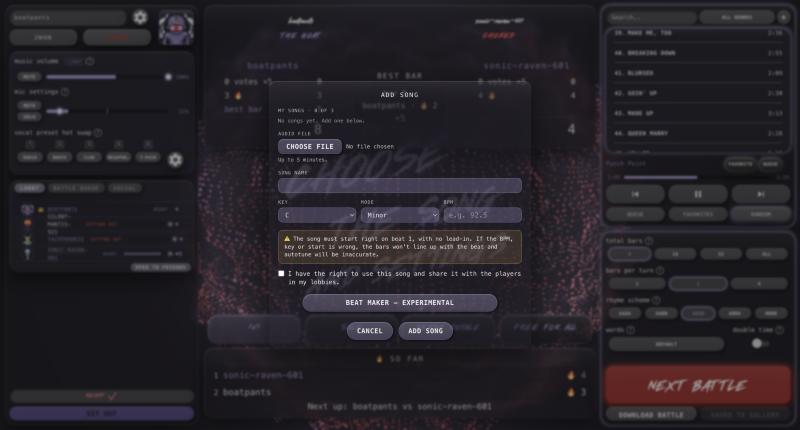
Press the + next to the genre menu in the song list to Add Song.
- Choose an audio file (up to 5 minutes and 40 MB) and give it a name.
- Enter its key (the note and major or minor). Autotune tunes your voice to it.
- Enter its BPM (tempo, 40 to 255). The bars and the count-in run on it, so it has to be right.
- The song must start right on the first beat, with no silence or lead-in, and be at least 38 bars long.
- Tick the box to confirm you have the right to use the song and share it.
- You can keep up to 3 songs. Edit or delete them from MY SONGS at the top of the same screen.
- In a lobby, everyone downloads your song automatically when it's picked. The battle starts once they all have it.
- On a computer, Beat Maker at the bottom of the Add Song screen lets you build a beat from scratch, with your friends if they're in the lobby, and add it to your songs.
Adding songs is part of the full game.
22. Accounts
You don't need an account to play. Open the game and start a lobby; that's it.
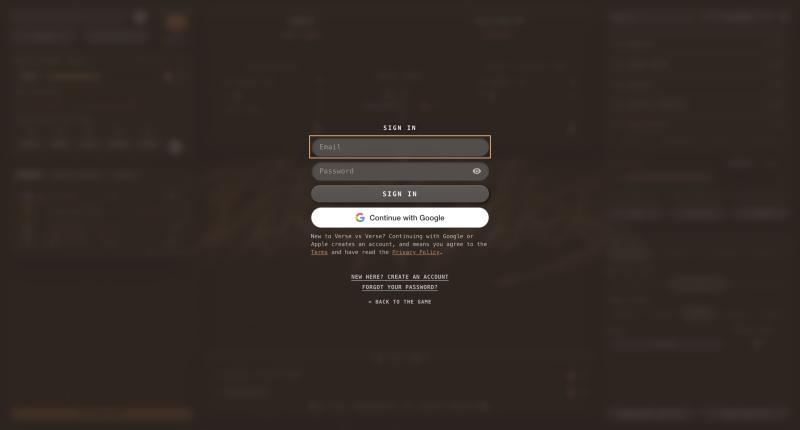
An account is needed to buy the full game, so your purchase follows you to any device you sign in on. It also keeps your career stats and friends. To make one, press Sign In on the first screen or in settings, then sign up with an email (we'll send you a code) or with Google or Apple. Your rapper name carries over. You can delete your account any time in Settings → Account.
23. The full game
Buy it in Settings → Buy Full Game (you'll be asked to sign in first). On the web you pay by card; in the iPhone app, through the App Store in most countries. It's a one-time purchase that unlocks everything, on every device you sign in on.
| Feature | Free | Full game |
|---|---|---|
| Create and join lobbies, voice chat | • | • |
| 1v1 and Solo | • | • |
| Verse Royale and Free For All | ✕ | • |
| Songs | 5 | The whole library |
| Total bars, bars per turn, rhyme scheme | • | • |
| Trap and gaming word lists, double time | ✕ | • |
| Song queue and favorites | ✕ | • |
| Add your own songs, Beat Maker | ✕ | • |
| Vocal effect presets and hot swaps | • | • |
| Your own vocal effects and presets | ✕ | • |
| Visualizers | 2 | All, with colour settings |
| Save battles to the replay gallery, download battles | ✕ | • |
| Friends and the Social tab | ✕ | • |
| Choose your own rapper name | ✕ | • |
| Guest codes: give a friend your lobby's full game | ✕ | • |
| No ads | ✕ | • |
| A free Steam key when Verse vs Verse launches on Steam (bought on the web) | ✕ | • |
The host's version sets the lobby: in a free player's lobby, everyone plays the free game. A full game owner in a free lobby keeps their own personal features (effects, visualizers, favorites). A free player on a guest code gets the lobby's full game for as long as the friend who gave it to them is there.
24. The latency test
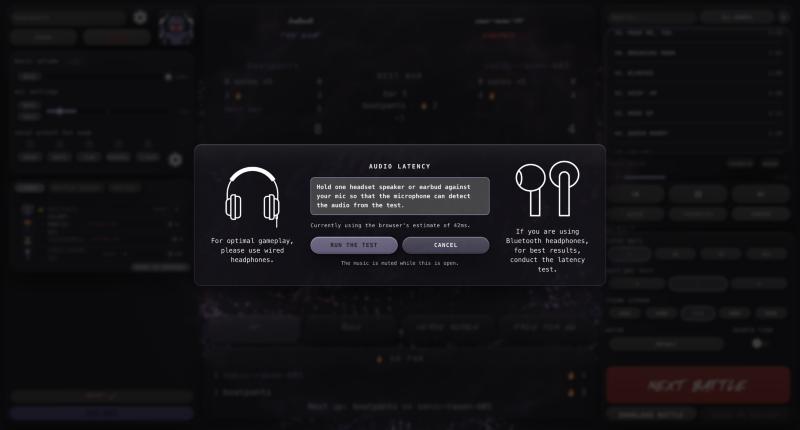
Every device has a tiny delay between the game playing a sound and you hearing it, and between you rapping and the mic picking it up. Bluetooth headphones add a lot. If the game doesn't know your delay, your bars land a little late in the playback.
Settings → Latency Test measures it:
- Wear the headphones you play with.
- Hold one earcup (or earbud) right up to your mic.
- Start the test. It plays a few clicks and listens for them.
It only takes a few seconds, and the game remembers the result. Run it again whenever you switch headphones, or if your bars sound early or late on playback. If the room is too noisy, the test will ask you to try again.
25. Tooltips
Turn on Settings → Tooltips, and a small ? appears next to controls around the game. Hover it (or tap it on a phone) to see what that control does. They're off to start with, and you can switch them on or off any time.
Still stuck? Get support.